Asset Category Forecast Report
Objective: Gain an understanding of how to generate an Asset Category Forecast Report.
The Asset Category Forecast Report allows users to export monthly actuals and forecasted depreciation across all assets, grouped by asset category, for a selected financial year.
From the Navigation Sidebar, select 'Accounting' and from the Navigation drop-down, select the relevant ledger, either 'Fair Value' or 'Historical'. Next, select the 'Other Reports' tab from the top navigation to display the available reports.
Select 'Asset Category Forecast Report' to load the report configuration screen.
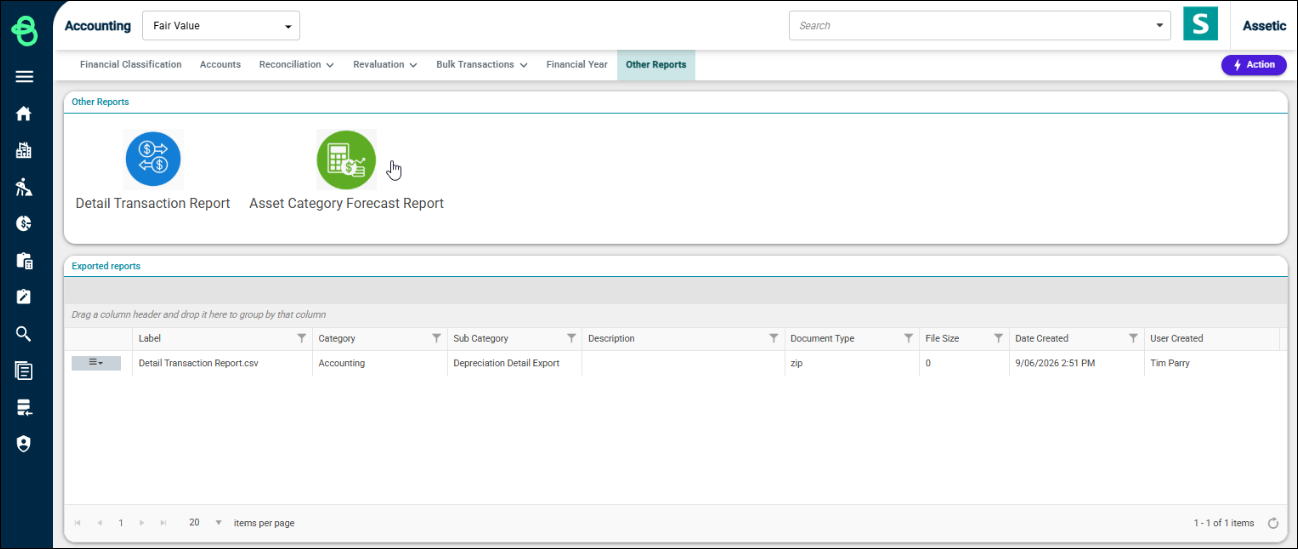
The report has one filter:
Financial Year: Use the dropdown to select the financial year to be exported. For completed periods, the actual deprecation will be used, while projected deprecation will be used for future periods. All available financial years will be listed as options.
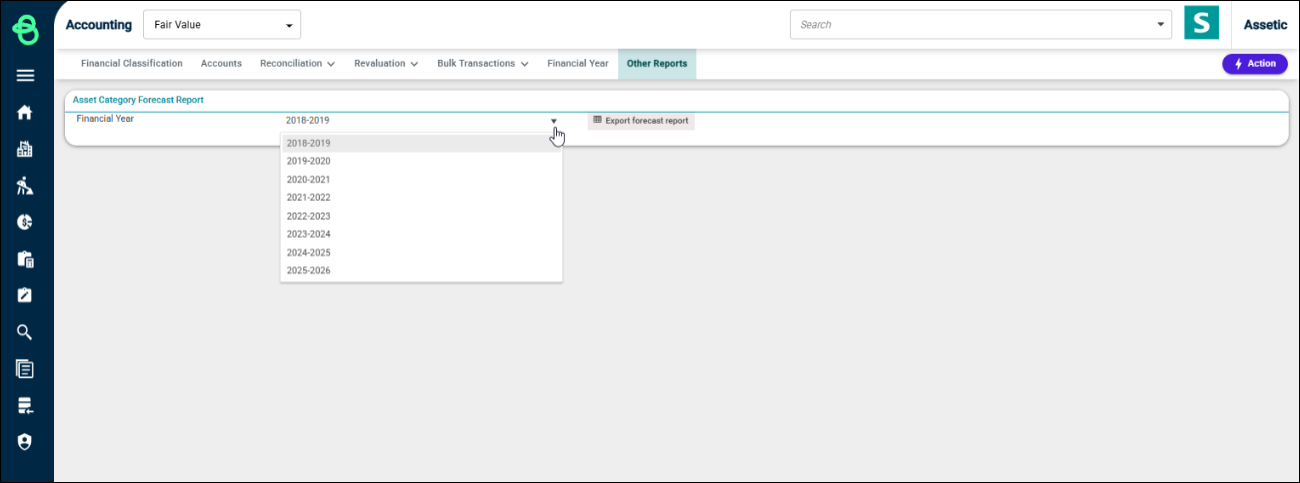
Once the desired financial year has been selected, click 'Export forecast report' to submit the report for generation. This report runs as a background job, so users can navigate away from the screen while it processes.
Select the 'Other Reports' tab to return to the previous screen. When the report has completed generating, it will appear in the 'Exported reports' grid at the bottom of the page, showing the label, category, document type, file size, date created, and the user who created it.
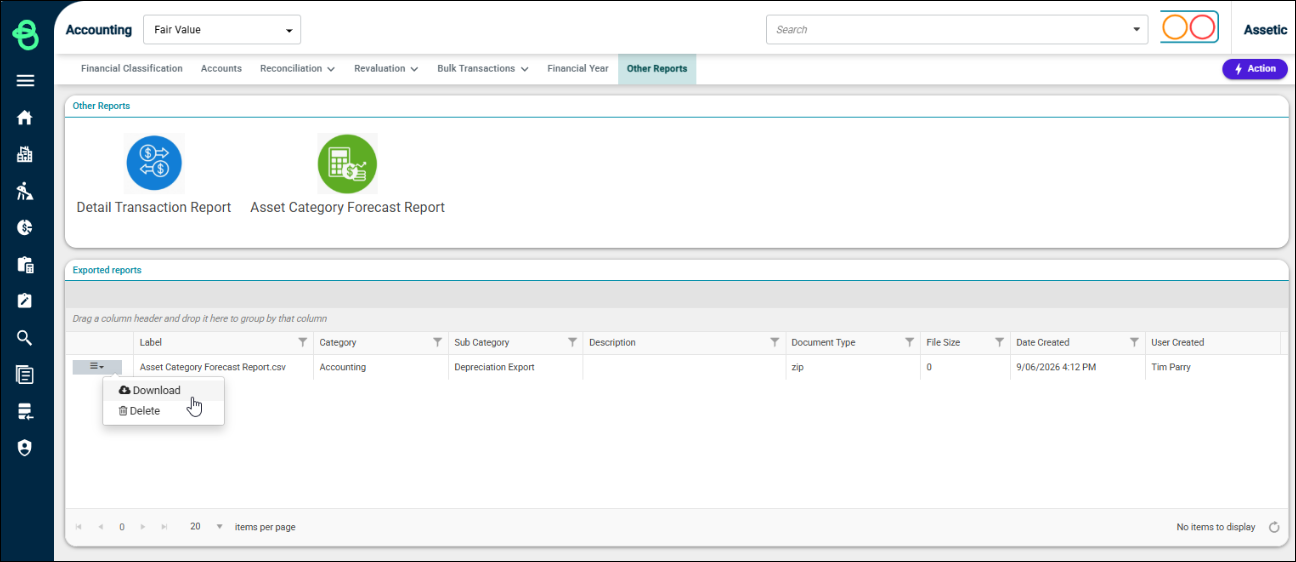
To download the report, click the menu icon to the left of the report entry and select 'Download'. The report will be downloaded locally as a zip file containing a CSV file.
To open the exported report, locate the downloaded .zip file, right-click to select the Unzip tool and extract the file. In the 'Extract to' dialog, enter or browse the folder path where the file is to be extracted to and select 'OK' to start the extraction. This will extract a .csv file in the selected folder with the same file name as the .zip file.
If a previously exported report is no longer needed, click the menu icon and select 'Delete'. A confirmation message will be displayed before the report is removed.
Next Steps: To gain a more detailed understanding of Brightly Assetic Accounting, refer to the remaining articles in the Assetic Accounting section.
